Welcome to the ultimate guide on Azure DevOps! Whether you’re a developer, project manager, or IT operations expert, this powerful platform can transform how your team builds, tests, and deploys software. Let’s dive into everything you need to know.
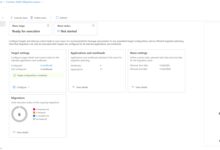
What Is Azure DevOps and Why It Matters

Azure DevOps is Microsoft’s comprehensive suite of development tools designed to support the entire software development lifecycle. From planning and coding to testing, deployment, and monitoring, Azure DevOps streamlines collaboration across teams and accelerates delivery.
Core Components of Azure DevOps
Azure DevOps isn’t a single tool—it’s a collection of integrated services that work together seamlessly. These include:
- Azure Repos: Git repositories or TFVC for source control.
- Azure Pipelines: CI/CD pipelines for automating builds and deployments.
- Azure Boards: Agile tools like Kanban boards, backlogs, and sprint planning.
- Azure Test Plans: Manual and exploratory testing tools.
- Azure Artifacts: Package management for NuGet, npm, Maven, and more.
Each component integrates with the others, enabling end-to-end traceability from idea to production.
How Azure DevOps Differs from Competitors
While tools like GitHub Actions, Jenkins, and GitLab CI/CD offer similar capabilities, Azure DevOps stands out due to its deep integration with Microsoft’s ecosystem, including Visual Studio, .NET, and Azure cloud services.
Unlike GitHub, which focuses heavily on open-source and public repositories, Azure DevOps provides robust enterprise-grade security, audit logging, and compliance features—ideal for large organizations.
“Azure DevOps gives us full control over our CI/CD process while integrating perfectly with our existing Azure infrastructure.” — DevOps Lead, Financial Services Firm
Azure DevOps vs GitHub: Understanding the Shift
In recent years, Microsoft has been pushing GitHub as its primary platform for code hosting and collaboration. This has led many to wonder: Is Azure DevOps being phased out?
Microsoft’s Strategy: GitHub for Code, Azure DevOps for Delivery
The answer is no—Azure DevOps is not going away. Instead, Microsoft is positioning GitHub as the central hub for code and community collaboration, while Azure DevOps remains the engine for enterprise DevOps workflows.
You can now connect GitHub repositories directly to Azure Pipelines, allowing teams to use GitHub for version control while leveraging Azure’s powerful CI/CD, testing, and project management tools.
When to Use Azure DevOps Over GitHub
Choose Azure DevOps when you need:
- Advanced release pipelines with approvals, gates, and multi-stage deployments.
- Integrated work item tracking with rich reporting and dashboards.
- On-premises deployment options via Azure DevOps Server.
- Enterprise-scale package management with Azure Artifacts.
GitHub, on the other hand, excels in open-source collaboration, pull request workflows, and Actions for lightweight automation.
Setting Up Your First Azure DevOps Project
Getting started with Azure DevOps is straightforward. Whether you’re building a small app or managing a large-scale enterprise system, the setup process lays the foundation for success.
Creating an Organization and Project
First, sign in to dev.azure.com using your Microsoft account. You’ll be prompted to create an organization—a container for all your projects.
Once your organization is set up, create a new project. You can choose between Agile, Scrum, or CMMI process templates, depending on your team’s methodology.
Configuring Access and Permissions
Security is critical. Azure DevOps uses role-based access control (RBAC) to manage permissions. Assign roles like Project Administrator, Contributor, or Reader based on user responsibilities.
You can also integrate with Azure Active Directory (AAD) for single sign-on and conditional access policies, ensuring compliance with corporate security standards.
Mastering Azure Repos: Version Control Done Right
Azure Repos is the backbone of source code management in Azure DevOps. It supports both Git and Team Foundation Version Control (TFVC), though Git is the recommended option for most teams.
Choosing Between Git and TFVC
Git is distributed, making it ideal for decentralized teams and modern development practices like feature branching and pull requests.
TFVC is centralized and better suited for teams that require strict file locking and linear version history—common in regulated industries.
For new projects, Git is almost always the better choice due to its flexibility and widespread adoption.
Branching Strategies and Pull Requests
A well-defined branching strategy is essential. The most popular model is GitFlow, which uses branches like main, develop, feature, and release.
Pull requests in Azure Repos enable code reviews, automated builds, and policy enforcement. You can require approvals, check build status, and run static analysis before merging.
Automating Workflows with Azure Pipelines
Azure Pipelines is arguably the most powerful component of Azure DevOps. It enables continuous integration (CI) and continuous delivery (CD) across multiple platforms and clouds.
Building CI/CD Pipelines with YAML
Modern Azure Pipelines use YAML configuration files stored in your repository. This approach, known as Infrastructure as Code (IaC), makes pipelines version-controlled, reusable, and auditable.
Here’s a simple example of a CI pipeline:
trigger:
- main

pool:
  vmImage: 'ubuntu-latest'

steps:
- script: dotnet build
  displayName: 'Build .NET Project'
- script: dotnet test
  displayName: 'Run Tests'
This pipeline triggers on changes to the main branch, runs on a Linux agent, and executes build and test commands.
Multi-Stage Pipelines for Complex Deployments
For production-grade applications, use multi-stage pipelines to separate build, test, and deployment phases.
Each stage can target different environments (dev, staging, prod) and include manual approvals, automated tests, and deployment gates.
For example, you can configure a pipeline to deploy to staging automatically but require a manual approval before deploying to production.
Enhancing Collaboration with Azure Boards
Azure Boards brings agile project management into the heart of Azure DevOps. It helps teams plan, track, and discuss work across the entire development cycle.
Using Work Items and Backlogs
Work items represent tasks, bugs, user stories, or features. They can be organized into backlogs and sprints, allowing teams to prioritize and plan iteratively.
You can customize work item types and fields to match your team’s process, making Azure Boards highly adaptable.
Kanban Boards and Dashboards
The Kanban board visualizes workflow stages (To Do, In Progress, Done) and helps identify bottlenecks. You can set work-in-progress (WIP) limits to improve flow efficiency.
Dashboards aggregate data from all Azure DevOps services, providing real-time insights into build status, test results, and team velocity.
Managing Packages with Azure Artifacts
Azure Artifacts simplifies dependency management by hosting private NuGet, npm, Maven, and Python packages.
Creating and Sharing Private Feeds
You can create a feed to store internal libraries and share them securely across teams. This avoids reliance on public registries and ensures consistency.
Feeds can be scoped to a project or organization, and access can be controlled via permissions.
Integrating with Build Pipelines
Azure Pipelines can restore packages from Azure Artifacts during builds and publish new versions after successful builds.
This creates a seamless flow from code to reusable component, enhancing reusability and reducing duplication.
Testing and Quality Assurance with Azure Test Plans
Ensuring software quality is a core part of DevOps. Azure Test Plans provides tools for manual, exploratory, and automated testing.
Manual Testing and Test Suites
Testers can create test plans, define test cases, and execute them step-by-step. Results are logged and linked to work items, providing full traceability.
This is especially useful for regulated environments where audit trails are required.
Exploratory Testing and Feedback
Exploratory testing allows testers to investigate the app without predefined scripts. The Test & Feedback extension captures screenshots, logs, and reproduction steps directly from the browser.
This feedback is automatically linked to a work item, speeding up bug resolution.
Scaling DevOps with Azure DevOps Server and Services
While Azure DevOps Services is cloud-based, some organizations prefer on-premises solutions for compliance or latency reasons.
Azure DevOps Server: On-Premises Power
Azure DevOps Server (formerly TFS) offers the same features as the cloud version but runs in your datacenter. It supports hybrid scenarios and integrates with on-premises Active Directory.
However, you’re responsible for updates, backups, and scaling.
Hybrid and Multi-Cloud Strategies
Many enterprises use a hybrid model: Azure DevOps Server for internal projects and Azure DevOps Services for cloud-native apps.
You can also integrate with AWS and Google Cloud via service connections in pipelines, enabling true multi-cloud DevOps.
Best Practices for Effective Azure DevOps Implementation
Adopting Azure DevOps is more than just setting up tools—it’s about transforming culture and processes.
Start Small and Iterate
Begin with a pilot project. Focus on automating builds and testing before moving to complex deployments.
Use feedback to refine processes and gradually expand to other teams.
Enforce Code Quality and Security
Integrate static code analysis tools like SonarQube or Microsoft Security Code Analysis into your pipelines.
Use branch policies to prevent low-quality code from merging into main branches.
Monitor and Optimize Pipeline Performance
Track pipeline duration, success rates, and failure patterns. Optimize by caching dependencies, using parallel jobs, and selecting appropriate agent types.
Leverage Azure Monitor and Application Insights for end-to-end observability.
Integrating Azure DevOps with Third-Party Tools
Azure DevOps is highly extensible. Through its marketplace and REST APIs, you can integrate with hundreds of tools.
Popular Integrations
Common integrations include:
- Jira: Sync work items between Azure Boards and Jira.
- Slack: Get pipeline notifications in Slack channels.
- Docker & Kubernetes: Deploy containers to AKS, EKS, or GKE.
- Terraform: Manage infrastructure as code within pipelines.
Using the Azure DevOps Marketplace
The Azure DevOps Marketplace offers thousands of extensions for testing, deployment, reporting, and more.
You can also publish your own extensions to share across teams or with the community.
Security and Compliance in Azure DevOps
In enterprise environments, security isn’t optional—it’s mandatory. Azure DevOps provides robust features to protect your code and data.
Role-Based Access Control (RBAC)
Assign granular permissions at the organization, project, and repository levels. Use groups to manage access efficiently.
Enable two-factor authentication (2FA) for all users to prevent unauthorized access.
Audit Logs and Governance
Azure DevOps logs all critical actions (e.g., user additions, permission changes, pipeline executions). These logs can be exported to Azure Monitor or Sentinel for analysis.
Set up policies to enforce compliance, such as requiring pull request reviews or blocking insecure pipeline configurations.
Real-World Use Cases of Azure DevOps
Understanding how real companies use Azure DevOps can inspire your own implementation.
Enterprise Software Development
Large financial institutions use Azure DevOps to manage thousands of repositories, enforce compliance, and deploy to regulated environments with audit trails.
Startups and Agile Teams
Startups leverage Azure DevOps’ free tier to build MVPs quickly, using agile boards and CI/CD to iterate fast without heavy infrastructure costs.
Government and Defense
Due to its support for on-premises deployment and integration with Azure Government, Azure DevOps is used in defense projects requiring high security and data sovereignty.
What is Azure DevOps used for?
Azure DevOps is used to manage the entire software development lifecycle, including source control, CI/CD, project management, testing, and package management. It helps teams collaborate efficiently and deliver software faster and more reliably.
Is Azure DevOps free?
Yes, Azure DevOps offers a free tier for small teams (up to 5 users), including unlimited private repositories, CI/CD minutes, and work item tracking. Paid plans are available for larger teams and advanced features.
Can Azure DevOps deploy to AWS or Google Cloud?
Yes, Azure Pipelines can deploy applications to AWS, Google Cloud, and other platforms using service connections, CLI tasks, or infrastructure-as-code tools like Terraform.
How does Azure DevOps integrate with GitHub?
You can connect GitHub repositories to Azure Pipelines for CI/CD, use GitHub Issues with Azure Boards, and trigger pipelines on GitHub events. This allows teams to use GitHub for code while leveraging Azure’s DevOps tools.
What is the difference between Azure DevOps and Azure DevOps Server?
Azure DevOps Services is the cloud-hosted version, while Azure DevOps Server is the on-premises version. Both offer similar features, but the server version requires self-management of infrastructure and updates.
In conclusion, Azure DevOps remains a cornerstone of modern software delivery. Despite the rise of GitHub, it continues to evolve as a powerful, enterprise-ready platform for CI/CD, agile planning, and collaboration. Whether you’re a small team or a global enterprise, mastering Azure DevOps can significantly boost your development speed, quality, and reliability. The key is to start small, integrate wisely, and continuously improve your DevOps practices.
Further Reading:
